The setup guide
When you open a new company, the Dashboard shows Get to your first clock-in. It has six steps. The next one is open and marked Next. A step ticks itself off only when it really happens, like a published schedule or a first clock-in.
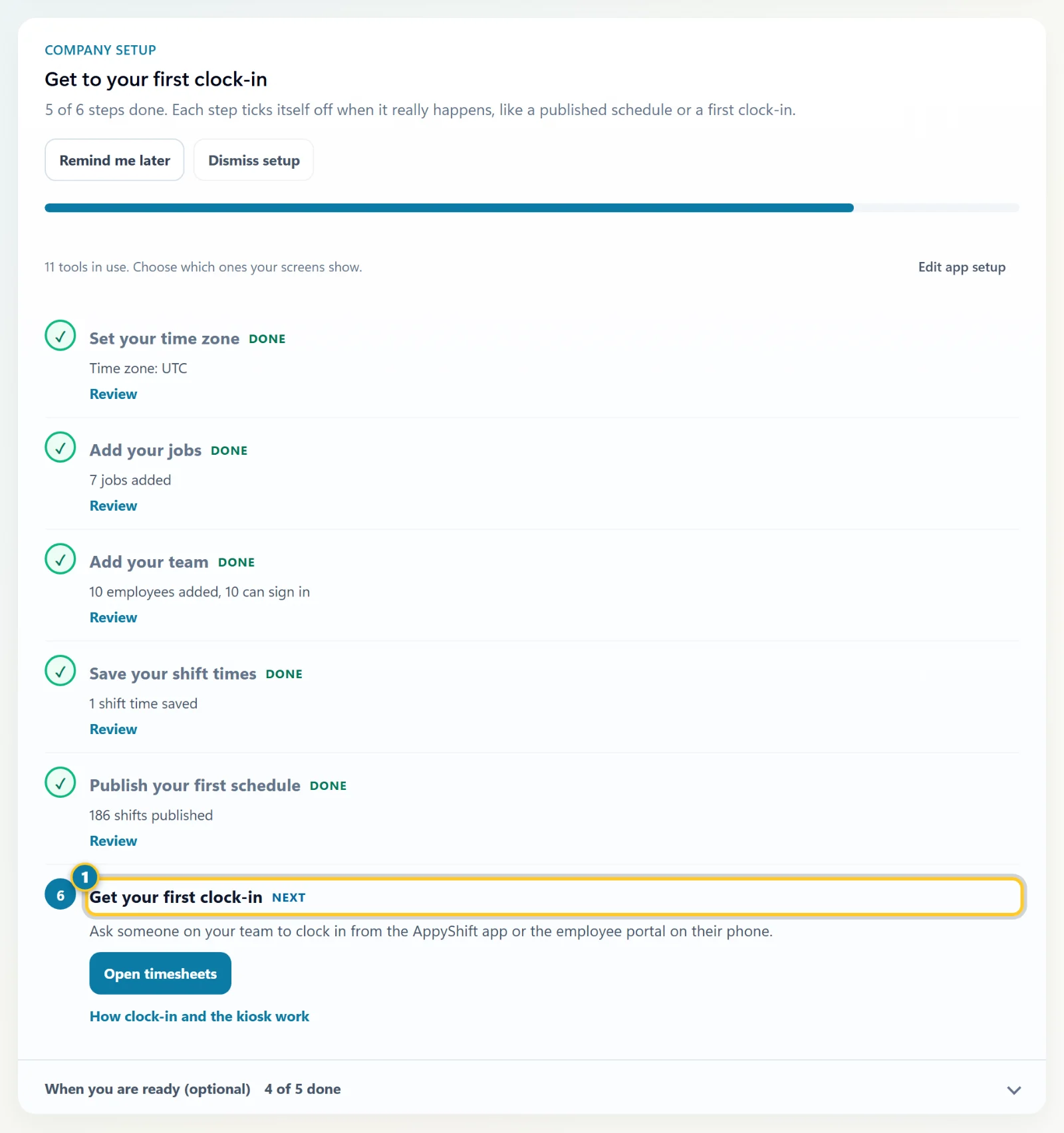
- Set your time zone. Choose your time zone and your industry, then select Save and continue. AppyShift picks the time zone your computer uses; check it. Your industry sets the words your screens use, like "Crews" or "Units". You can see what it turned on and change it right away.
- Add your jobs. Add the jobs people work, like Cook or Cashier. Your company may call them something else, like roles or client jobs. For some industries the step also offers a starter kit, home care setup or facility setup, which add jobs with their certifications and shift times for you.
- Add your team. Add people one at a time, import a spreadsheet, or have us import it. Invite them to the app so they see their shifts.
- Save your shift times. Your usual start and end times, so adding a shift takes one select.
- Publish your first schedule. Add shifts for the coming week, then select Publish. Draft shifts don't count until they're published.
- Get your first clock-in. Ask someone on your team to clock in from the AppyShift app or the employee portal. If the time clock is off, the step turns it on first.
Going back to the guide
Each step opens the page where you do it. At the top you'll see Back to setup. When you save there, you go right back to the same step, and it shows what you added. The browser's Back button also returns to the guide.
The industry starter kit, home care setup and facility setup save in parts, so they keep you on the page. Select Back to setup when you're done.
Optional setup
Under the six steps, When you are ready (optional) lists other setup, like time off, your handbook, new-hire tasks and overtime rules. Each one ticks itself off when you add it.
Select Remind me later to hide the guide for three days, or Dismiss setup to hide it for good. Everything in it is still in Settings.
Before you invite everyone
- Choose what employees can do on their own, like request time off and call out. See Choose what employees can do.
- Add your managers and admins, and check what each one can see. See Add managers and admins.
Some labels, like Departments, Jobs and Locations, follow your company's own words. If you renamed them, look for your names instead.