Add a field
- In the menu, under Settings, open People & Access and select Employee Profile Fields.
-
Under Add field, type the field's Label (1), like "Uniform size".
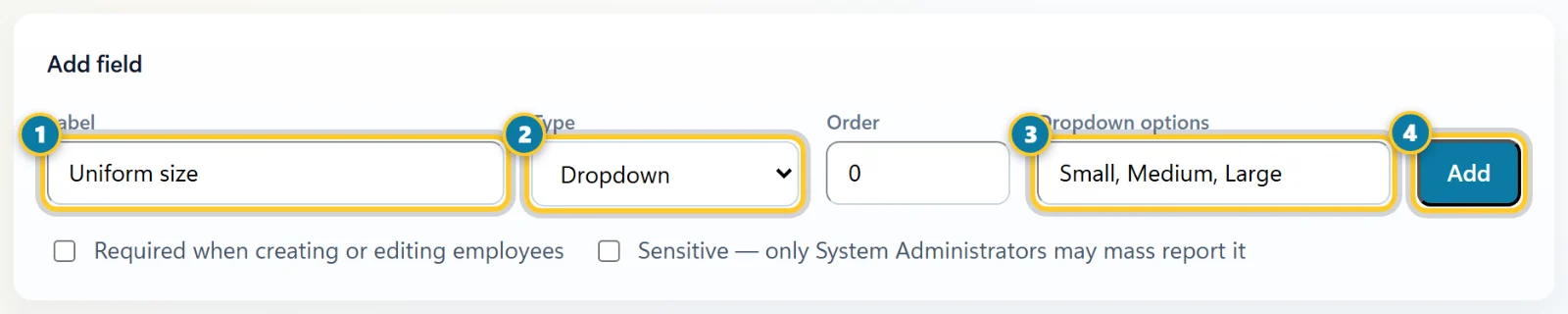
Label it (1), choose the type (2), list the choices for a dropdown (3), then add it (4). - Choose its Type (2): Text, Number, Date, Dropdown or Checkbox. For a dropdown, type the choices separated by commas (3).
- Set the Order it shows in, lowest first.
- Tick Required when creating or editing employees if every profile must have it. Tick Sensitive to keep it out of reports for everyone but system administrators.
- Select Add (4).
Where custom fields show up
- In the Custom Fields card on each employee's profile, and on the form to add or edit an employee.
- As optional columns on the Employees list, and in custom reports, while Available in views and reports is ticked. See Find employees and save your own list views.
Change or remove a field
Each field is listed below the form. Change its name, type, order or choices and select Save. Untick Active to hide a field without losing what's saved in it. Delete removes the field and every value saved in it.
Note
Employees don't see custom fields in the employee app. Custom fields aren't part of the employee import file.