Before you start
You need permission to manage employment status. Company admins have it. Terminating someone doesn't delete them. Their record, hours and history stay, and you can rehire them later. To delete a former employee's record once the law allows, see Answer a request for someone's data.
End someone's employment
-
Open the employee's profile and select Terminate at the top.
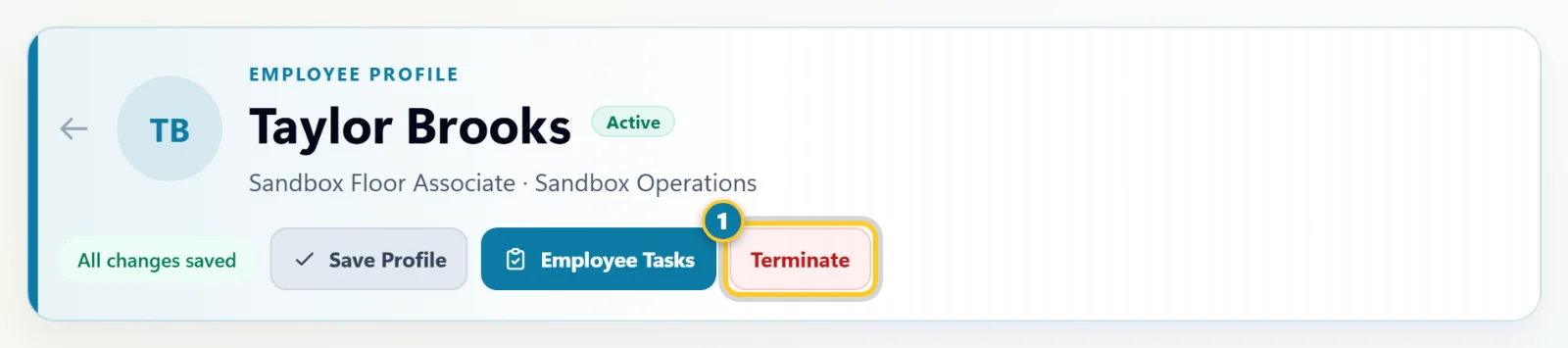
Terminate (1) is at the top of the profile. - Set the Termination Date. It starts as today.
- Choose a Reason, and add Notes if you like. Notes are internal, and the employee doesn't see them.
- Under Rehirable?, choose Yes or No.
-
Select Confirm Termination.
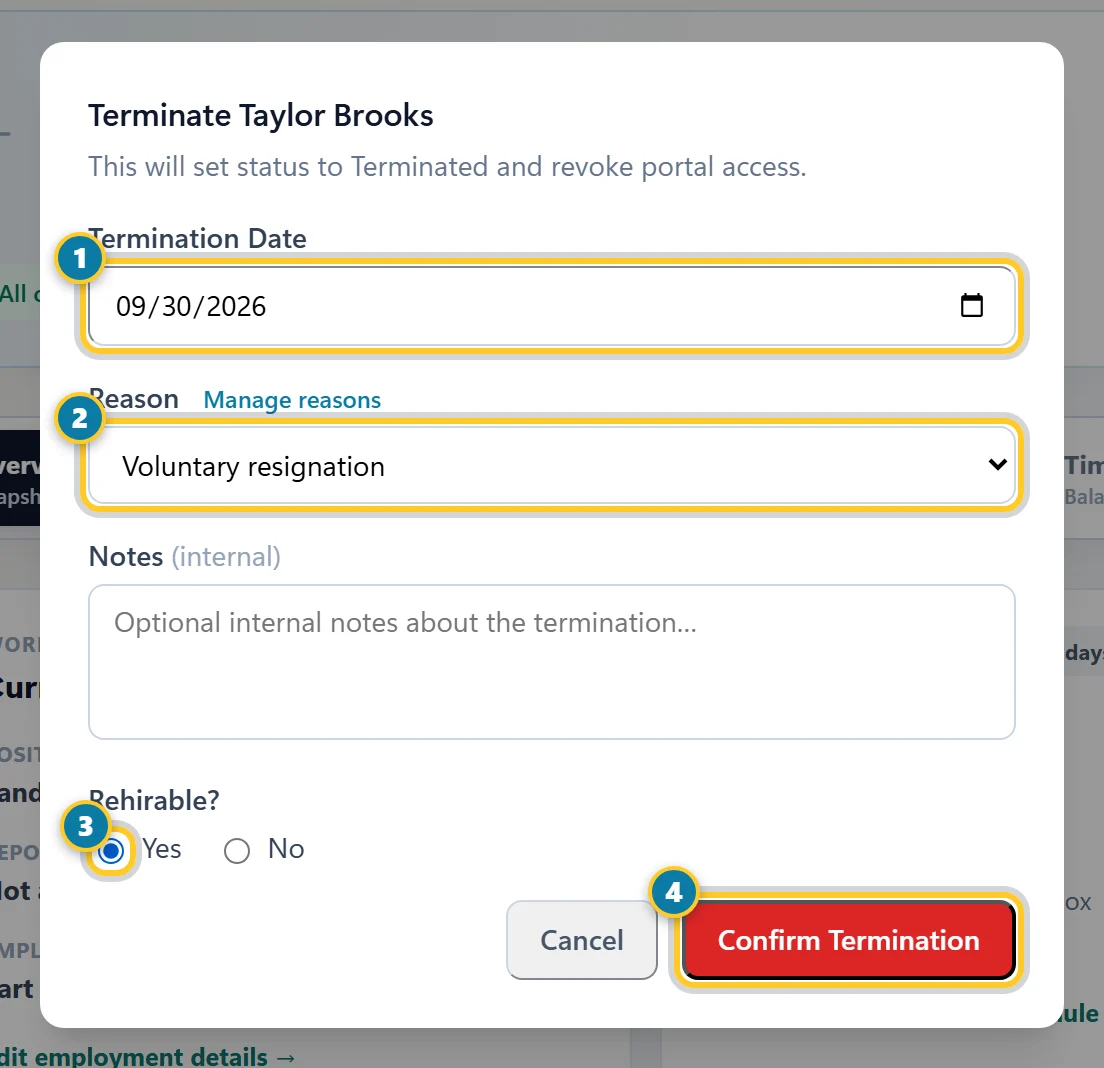
Set the date (1), the reason (2) and whether they're rehirable (3), then select Confirm Termination (4).
What happens
- Their status changes to Terminated and the change is added to Job Change History on the Employment tab.
- Their access to the employee app ends right away, even if the termination date is later. Plan the timing with that in mind.
- Their shifts stay on the schedule. Reassign or remove any shifts after their last day.
- To find them later, choose Terminated in the status filter on the Employees page.
Want different reasons in the list? Select Manage reasons next to Reason, or go to Settings > People & Access > Termination Reasons. You can hide the built-in reasons and add your own. See Add your own termination reasons.
Rehire someone
- Open their profile. Choose Terminated in the status filter on the Employees page if you can't find them.
- Select Reactivate at the top of the profile.
- In the Rehire window, set the Rehire Date. It starts as today.
- Select Confirm Rehire.
They're active again, and the rehire is added to their job history. If they had a sign-in before, it works again. If the message says Portal access remains disabled until a password is set, open the HR & Access tab and use Enable portal access under Employee Portal.
Rehiring counts toward your plan's employee limit. If you're at the limit, you'll see a message asking you to upgrade or deactivate someone first.