Choose your language
- Open Me.
-
Under Language, select Español (1) or English.
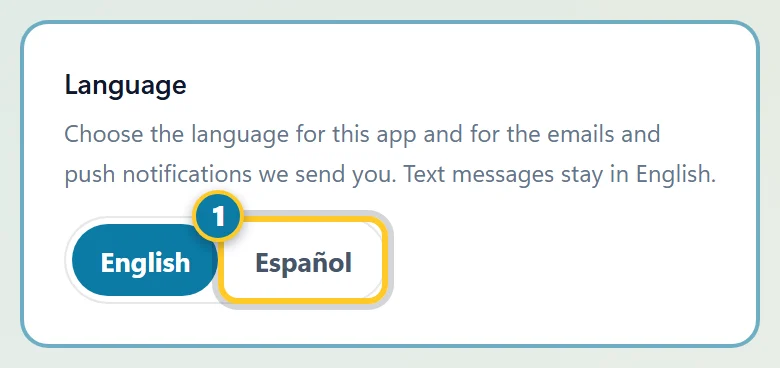
Select Español (1) to use the app in Spanish.
The app switches right away, and it remembers your choice on every phone and computer you sign in on.
Choose it before you sign in
- Open the sign-in page.
- Under the sign-in form, select Español. The sign-in page switches, and the app stays in Spanish after you sign in.
What changes
- Every screen in the app: your schedule, time clock, timesheet, time off, requests, Inbox, Me and the rest.
- The emails AppyShift sends you, like a new shift or a time-off decision, and the push notifications on your phone.
- Day and month names, like vie, 3 oct.
Note
Some things stay in English: text messages, government forms like Form I-9 (they show a note in Spanish), the help guides, and anything your company typed itself, like job names, notes and announcements.
If you don't choose, the app follows the language your company picked, or your phone's language.