Two different questions
- What can they do? The Base Role, an optional access profile and any exceptions decide which pages and actions a person gets, like adding employees or reviewing timesheets.
- Who can they see? A Company Admin sees everyone. A Manager sees the employees who report to them, and everyone below those people, plus anyone in a visibility group they belong to.
Both are on Settings > People & Access > Admin Users & Access, which has a tab for each: Admin users, Access profiles, Visibility groups, and What each role can do.
Set who reports to a manager
- Make sure the manager's sign-in is linked to their own employee record. It shows as Linked employee under their name on Admin Users & Access.
- Open each team member's profile, select the Employment tab, and choose the manager in Reports To.
- Select Save changes.
The manager now sees those people, and anyone who reports to them, on Employees, the schedule, time off and timesheets.
Make an access profile
Use a profile when several people need the same access, like shift leads who may also add employees.
- On Admin Users & Access, select the Access profiles tab, then Create Access Profile to open the form. Enter a Profile Name and a Description.
- Choose the Base Role the profile builds on.
- Permissions are in groups, like Employees. Select a group to open it. For each permission you want to change, choose Always allow or Always hide, and leave the rest on Inherit base role. A group with changes shows how many and opens by itself next time.
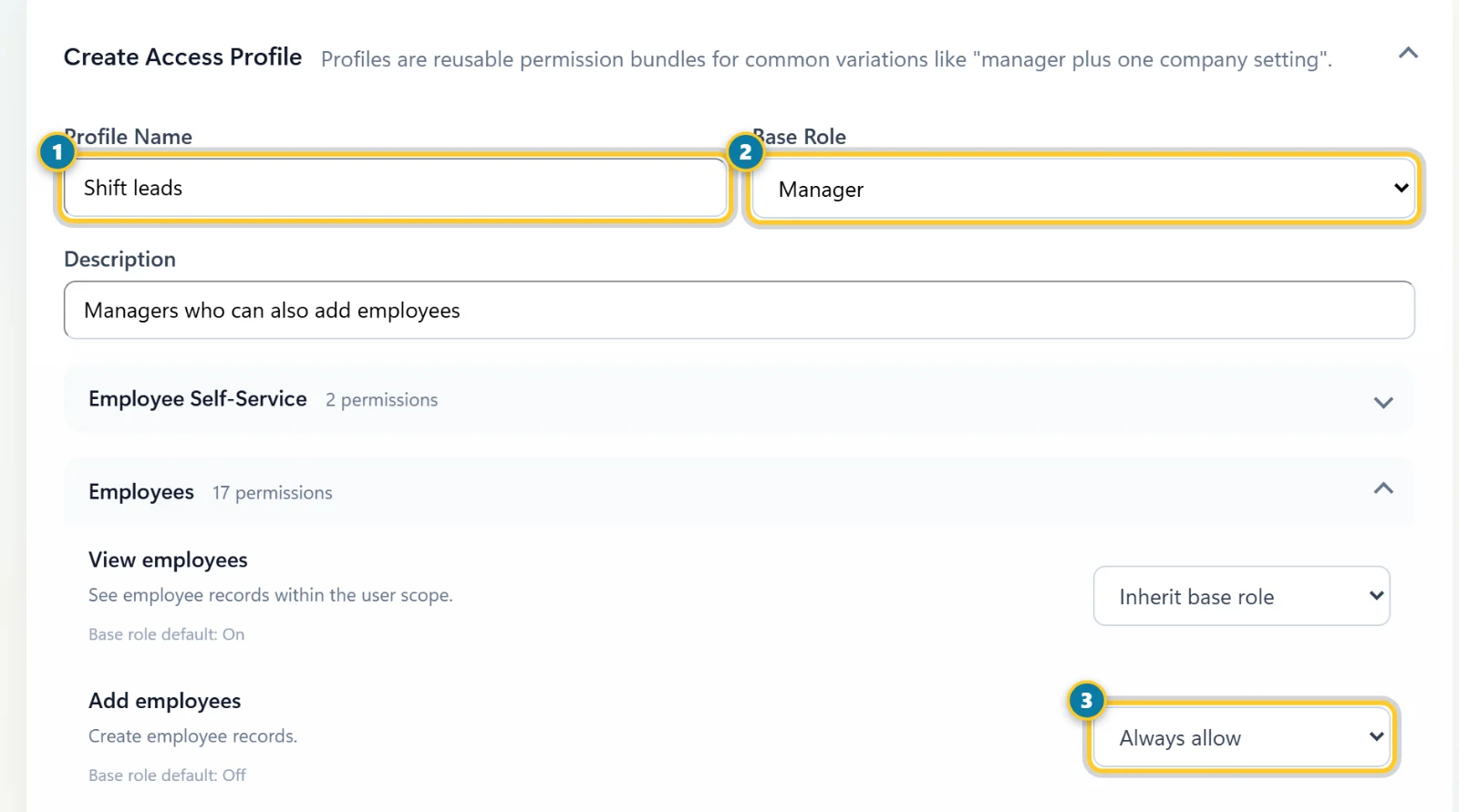
Name the profile (1), pick its base role (2), then change only the permissions you need (3). - Select Create Profile at the bottom of the list.
- To use it, open a person on the Admin users tab, choose the profile in Access Profile, and select Save User.
Profiles are listed in the Profile Library. A change to a profile applies to everyone who has it.
Billing has two permissions under Company Settings: View billing to see the plan and invoices, and Manage billing to change the plan, buy texts or change payment details. Manage billing works only together with View billing. A profile that could see billing before Manage billing was added still sees it, but can't change it until you set Manage billing to Always allow.
Add a visibility group
Use a group to let a manager see people who don't report to them, like a backup manager for another team.
- On Admin Users & Access, select the Visibility groups tab and go to Create Visibility Group. Enter a Group Name and a Description.
- In Managers with Access, choose the managers. Hold Ctrl (or Cmd on a Mac) to choose more than one.
- In Employees in Scope, choose the employees they should see.
-
Select Create Group.
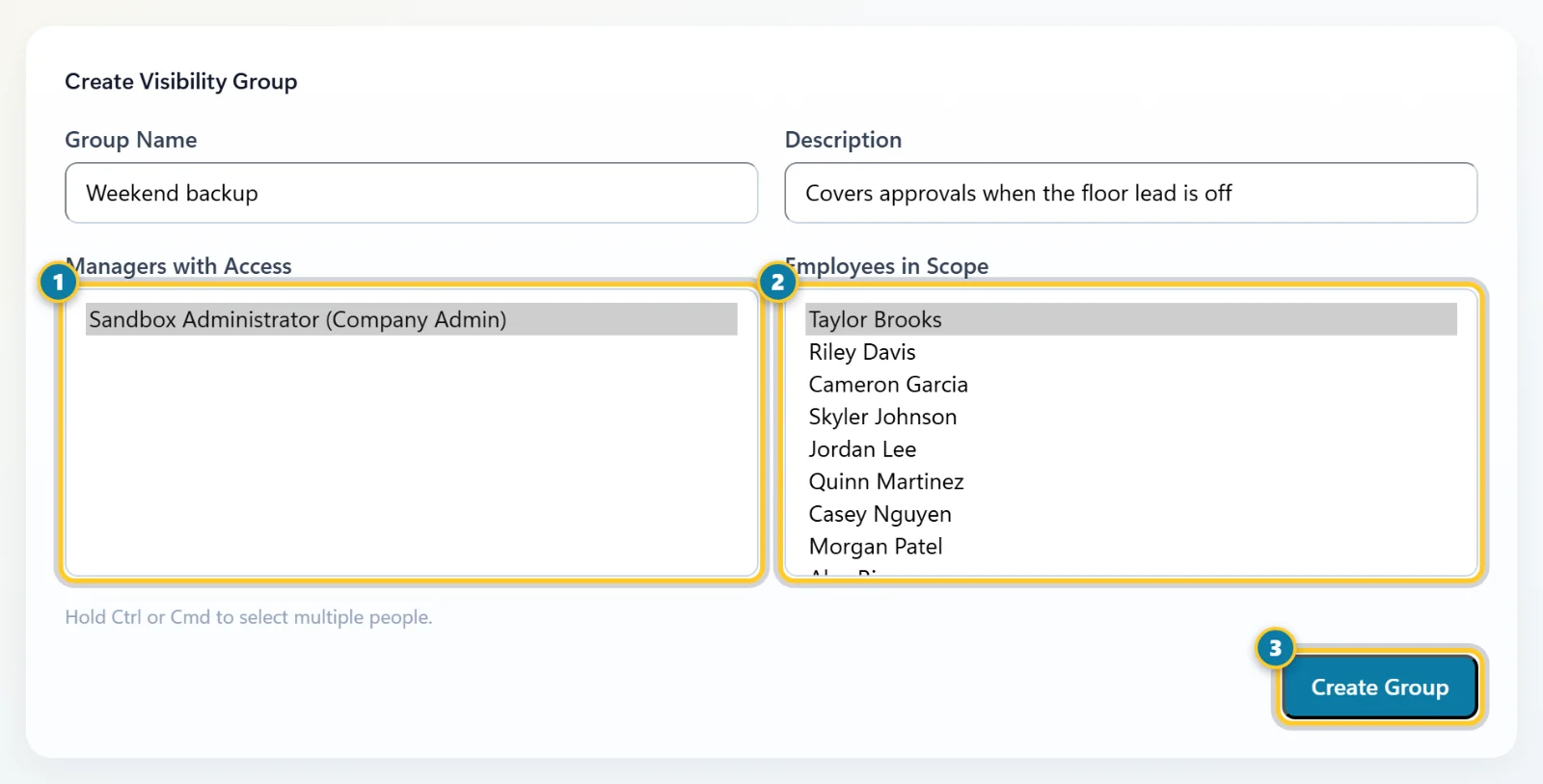
Choose the managers (1) and the employees they should see (2), then select Create Group (3).
A group only adds people. It never hides anyone a manager already sees. To change or remove a group, open it in the list below the form.
A manager with no linked employee record and no visibility group sees no employees at all. If a manager says their team is missing, check their Linked employee and the team's Reports To first.