Before you start
You need permission to manage security and access. Company admins have it. In the menu, select Settings > Company, then Company Settings. Your name, colors and logo are on the Company & branding tab. The words for departments, locations and jobs are on the Features & industry tab.
Change your name and colors
- Under Branding, type your Company name the way employees know it.
-
Pick a Primary color and an Accent / dark color, or type the color codes.
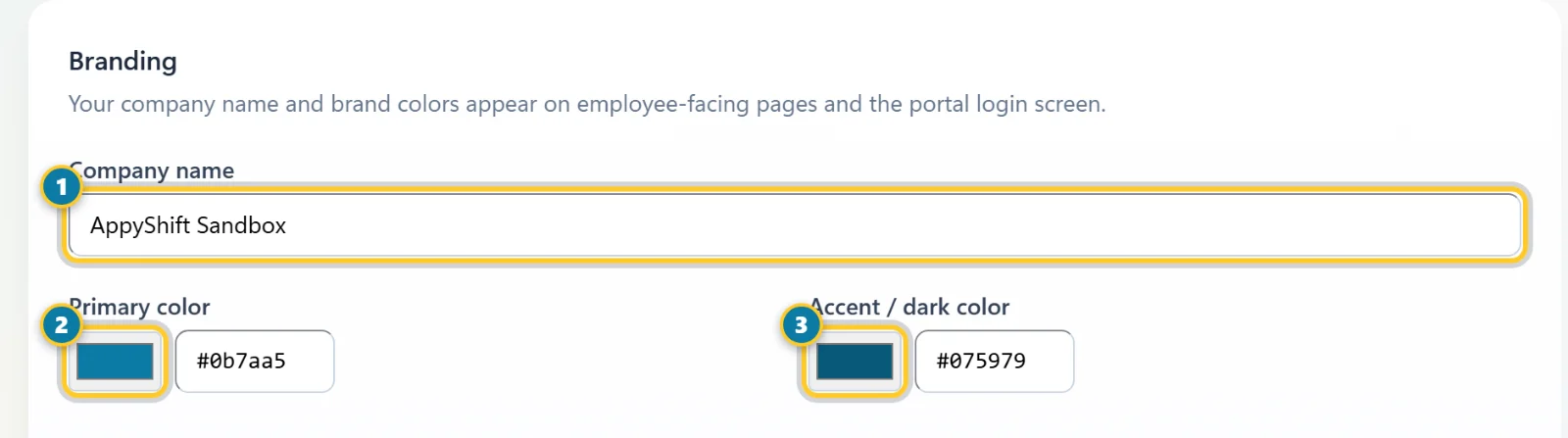
Your company name (1) and brand colors (2, 3). - Scroll down and select Save Branding & Careers.
Your name and colors show on the employee sign-in page and in the employee app.
Add your logo
-
Under Company Logo, select Upload logo and choose the file. Use a JPG, PNG, WebP or GIF up to 2 MB.
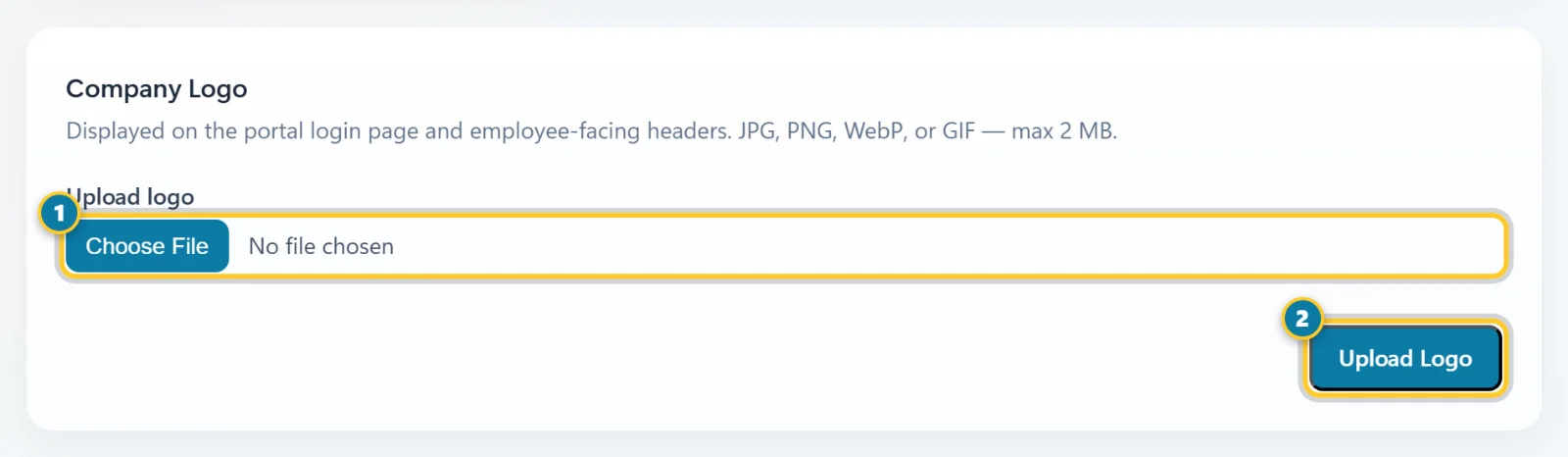
Choose the file (1), then select Upload Logo (2). - Select Upload Logo.
The logo shows on the employee sign-in page and at the top of the employee app.
Use your own words
If your team says "Store" instead of "Location", or "Team" instead of "Department", change the words. AppyShift uses them in menus, lists and forms.
- Scroll to Feature Access, then to Company terminology.
-
Type the Singular and Plural word for each one you want to change.
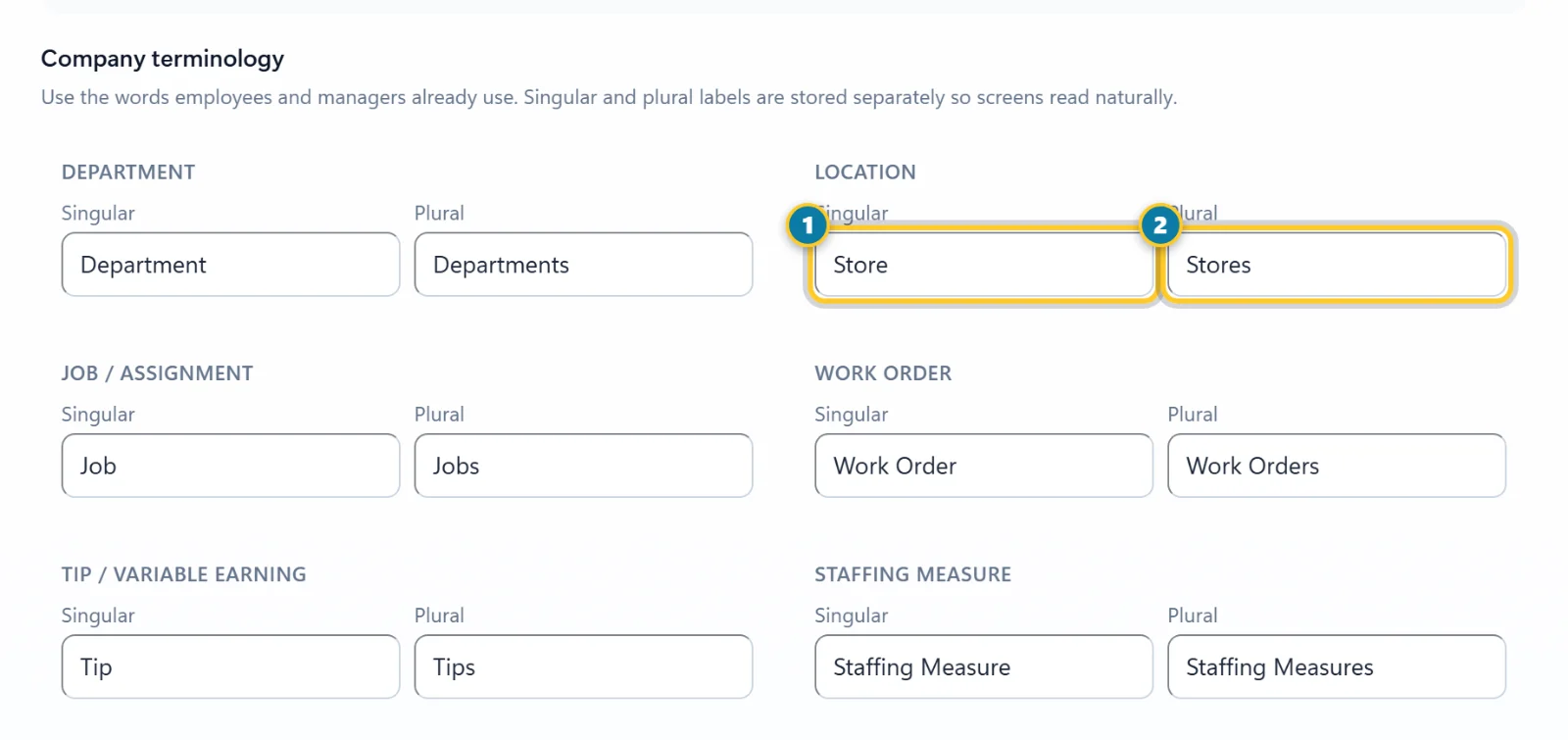
Type the singular (1) and plural (2), like Store and Stores. - Scroll to the end of Feature Access and select Save Company Configuration.
Leave Industry starting point on Keep my current setup unless you mean to change it. Apply Preset changes your wording and which tools are on. It never deletes records.
More wording and display settings
- Employee Portal Wording: rename the communication area employees see, like "Ask Your Manager". Select Save Employee Wording.
- Timezone: the time zone for every date and time in AppyShift, including late flags, missed punches, reminders and what counts as "today". While it's not chosen yet, AppyShift picks the time zone your computer uses. Check it, then select Save Timezone.
- Schedule Page Display: show birthdays, work anniversaries, weather and holidays on the schedule, turn employee shift confirmation on or off, and choose whether employees see Employee Team Schedule (who else is working each day in the employee app: names, roles and times only, on unless you turn it off). Select Save Display Settings.
Each section has its own save button. Save one section before you change the next.
"Your company is on UTC time"
New companies start on UTC time. Until a company admin chooses a time zone, admins see this note at the top of the page.
- Select Use and the time zone named on the button (the one your computer uses) to save it in one step.
- Select Choose a time zone to pick another one in Company Settings.
- Select Keep UTC only if your company really works in UTC. The note goes away.