Company Admins choose how long old records are kept. Nothing is deleted on its own. When records are past your rule, you get a reminder once a month, and they are deleted only when you select Delete and confirm.
Turn on a rule
- In the menu, open Settings and select Record Retention. If asked, select Confirm it's me and enter your password.
-
On a type of record, like Time records, tick Allow deleting records older than and enter the Months to keep. It can't be less than the legal minimum shown.
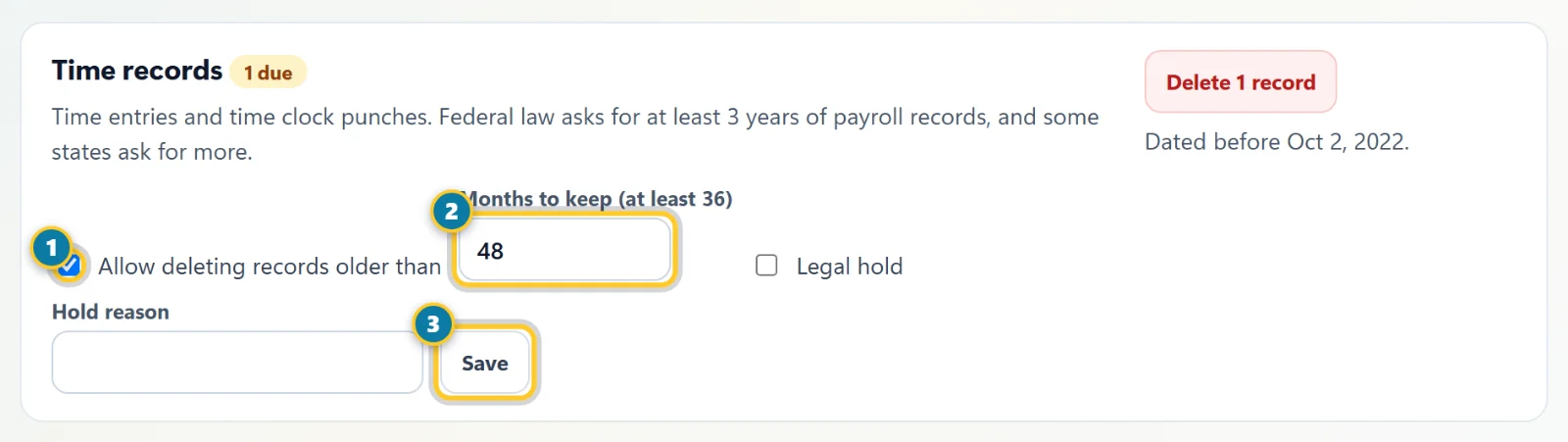
Tick Allow deleting (1), set the months (2), then select Save (3). - Select Save.
Delete what's due
- A rule that's on shows how many records are due, for example Delete 120 records, with the date they're older than.
- Select the button and confirm. A big deletion finishes in the background within a day. Past deletions lists each one.
Form I-9 disposal dates
Form I-9 disposal dates lists each Form I-9 with the date it can be destroyed: the later of 3 years after the hire date or 1 year after employment ended. While someone works here, theirs is kept. To destroy the ones that are due, turn on the Form I-9 rule, then select Delete.
Put records on legal hold
-
Under Legal holds, choose Whole company or one person in Covers, type the Reason, and select Place hold.

Choose who it covers (1), give the reason (2), then select Place hold (3). - Nothing the hold covers is deleted until you select Release. To hold one type of record, tick Legal hold on its rule instead.
Tip
Laws differ by state and industry. Check the rules that apply to you before you shorten a rule. Download a copy first in Data Export if you need one.