Your choices
- Authenticator app: an app like Google Authenticator, Microsoft Authenticator or 1Password shows a new 6-digit code every 30 seconds.
- Text message codes: we text you a 6-digit code when you sign in.
- Passkey: sign in with Face ID, Touch ID, Windows Hello or your phone's screen lock. A passkey counts as two-step sign-in, so there's no code to wait for.
You can set up more than one. This is for your own manager or admin sign-in. To offer or require it for employees, go to Settings > Company Settings, the Employee portal tab, then Employee Two-Step Sign-In.
Open your security settings
-
Select your name at the bottom of the menu, then select Security & MFA.
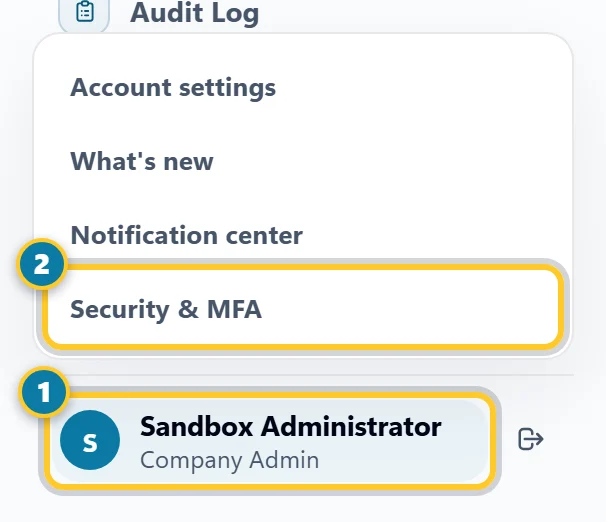
Select your name (1), then Security & MFA (2). - The Account Settings page opens. Select Security if it's closed.
Set up an authenticator app
- Under Multi-factor authentication, scan the code with your authenticator app. On your phone, you can select Open authenticator app instead. Can't scan? Select Cannot scan? and type the key into the app.
- Enter your Current password, then the 6-digit code the app shows in Authenticator code.
-
Select Enable MFA. The badge changes from Not enrolled to Enabled.
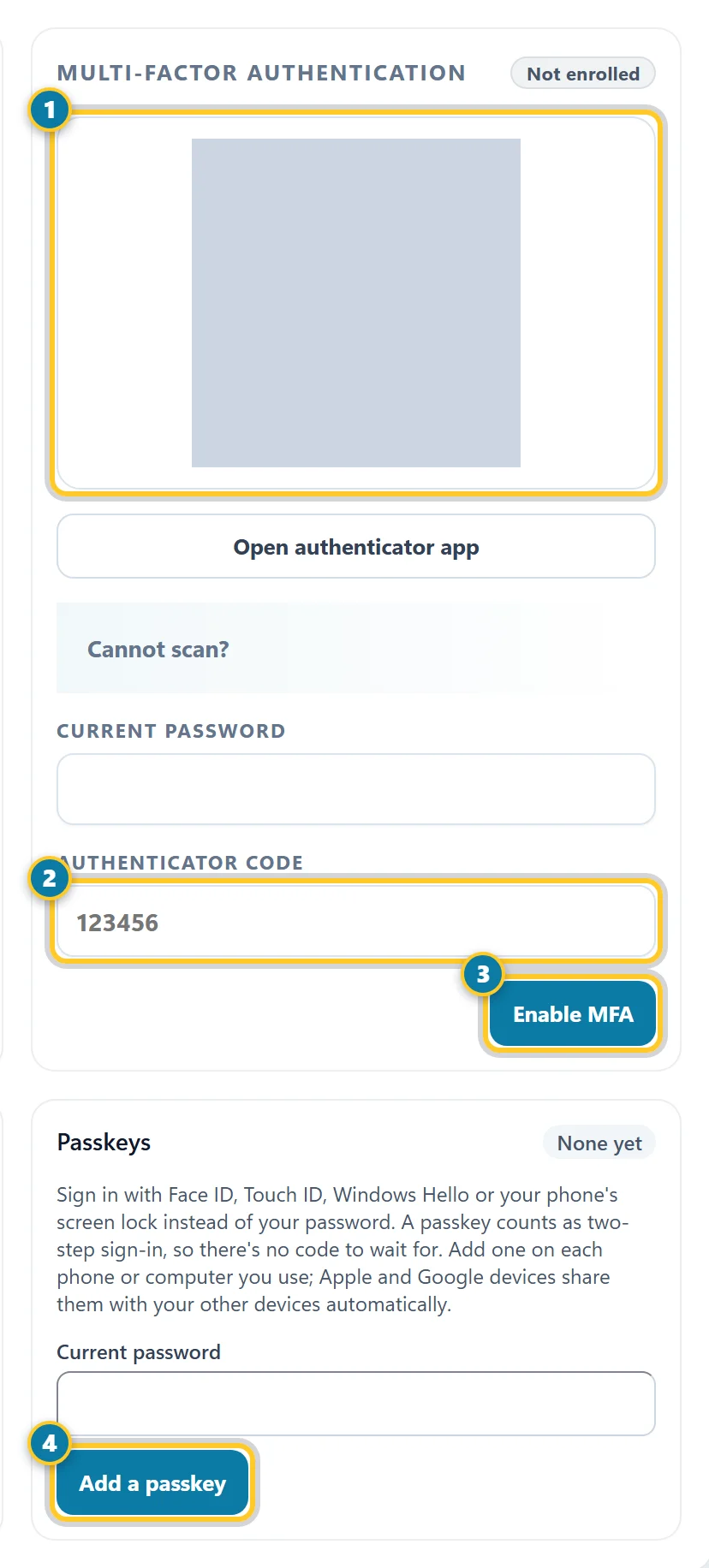
Scan the code (1), type the 6-digit code from the app (2) and select Enable MFA (3). Add a passkey with Add a passkey (4).
Use text message codes
Under Text message codes, enter your Mobile number and Current password, check the box to agree to the texts, and select Text me a code. Enter the code we send, then select Turn on text codes. If the panel says text message codes are coming soon, use an authenticator app or a passkey for now.
Add a passkey
- Do this on the phone or computer you'll sign in with. Under Passkeys, select Add a passkey.
- If asked, enter your Current password first.
- Follow your device's prompt, like Face ID or your screen lock. The passkey is added to the list.
Add one on each device you use. Apple and Google devices share passkeys with your other devices automatically. AppyShift may also offer Sign in faster with a passkey after you sign in. Select Set up a passkey, or Not now. On a shared computer, choose This is a shared device, don't ask here.
Signing in from now on
- After your password, the Verify sign in page asks for your code. Enter it and select Verify.
- With a passkey, select Sign in with a passkey on the sign-in page, or Use your passkey on the Verify sign in page.
- If you set up both kinds of code, choose Text me a code instead or Use my authenticator app instead.
Lost your phone and have no passkey? Your company admin can't reset your two-step sign-in from Settings. Contact AppyShift support at support@appyshift.com, and we'll help you get back in.
To turn a method off, go back to Security. Enter your current password and select Disable MFA or Turn off text codes, or select Remove next to a passkey.