Company admins choose who hears about each kind of employee request: time off, availability, time corrections, shift trades and pickups, call-outs, and employee messages. For requests that wait for a decision, the people you choose are also the ones who approve.
Add a rule
- In the menu, open Settings, then Messages & Apps, and select Requests & Approvals.
- Find the kind of request, like Time off, and select Add a rule.
-
In Who, choose who is told. For Chosen people, tick the people. For Anyone with an access profile, tick the profiles.
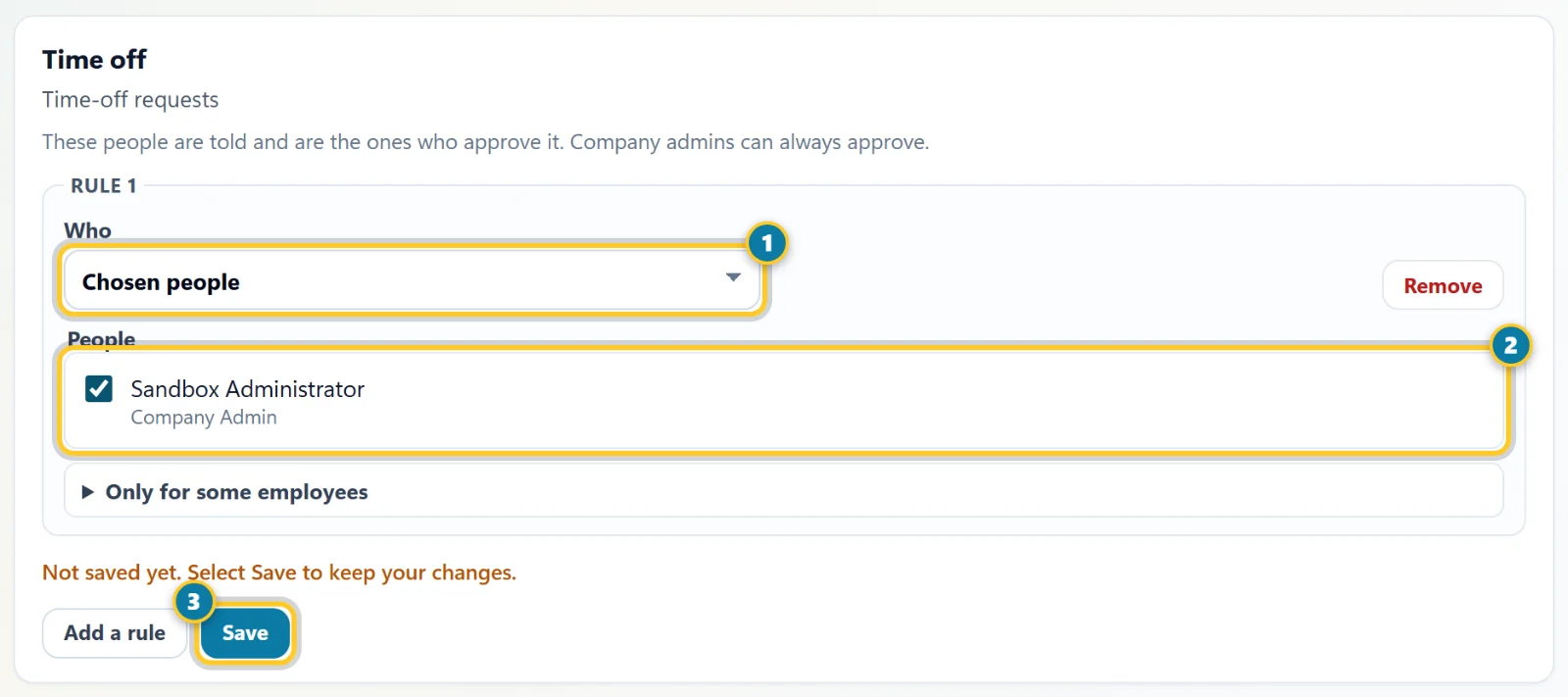
Choose who (1), tick the people (2), then select Save (3). - Select Save.
You can choose:
- Their manager: the manager on the employee's profile.
- The manager above their manager.
- Anyone who manages them: managers whose team includes the employee, and company admins. This is the default.
- Company admins.
- Chosen people: the managers and admins you tick.
- Anyone with an access profile: everyone who has the profiles you tick.
Add more rules to tell more people. Each kind of request can have up to 10 rules.
Use a rule for some employees only
-
In a rule, select Only for some employees.
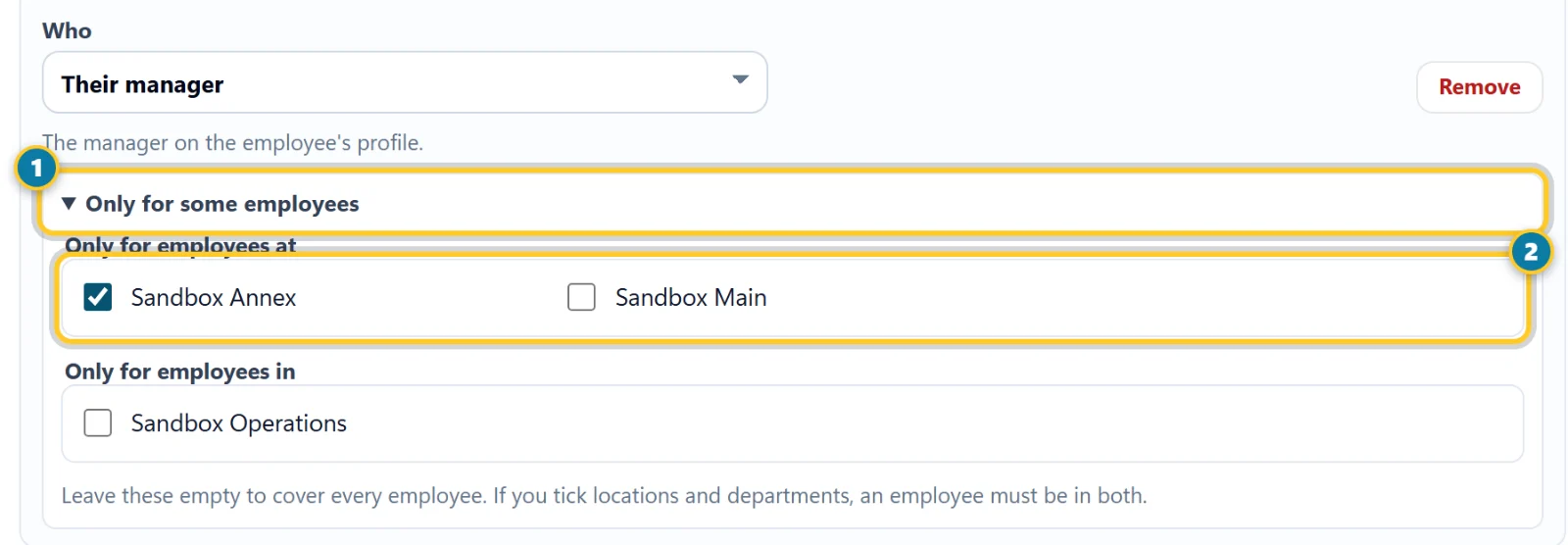
Open Only for some employees (1), then tick the places or teams (2). - Tick places under Only for employees at, teams under Only for employees in, or both.
- Select Save.
With nothing ticked, the rule covers every employee. With both ticked, an employee must be in both. For example, one rule can send requests from one store to its manager, and another rule can send a second store's requests to a lead there.
How the rules work
- A kind of request with no rules works as before: anyone who manages the employee is told and can approve.
- When several rules fit an employee, everyone they name is told.
- For time off, availability, time corrections, and shift trades and pickups, only those people approve. Company admins can always approve.
- Call-outs and employee messages only tell people. There is nothing to approve.
- Nobody approves their own request. A manager who asks for time off is not told about their own request.
- If no rule fits an employee, or a rule finds no one, the default is used. A request never waits for no one.
A chosen person also needs permission to open the approval page, like Review time off. If they don't have it, the rule says so. Add it to their access profile in Admin Users & Access.
Remove a rule
- On the rule, select Remove.
- Select Save. With no rules left, that kind of request goes back to the default.
Only company admins can open this page, so a manager can't give themselves approval power.