Your next shift
-
Open Home. The top card shows your Next shift: the day, the times, your job and where.
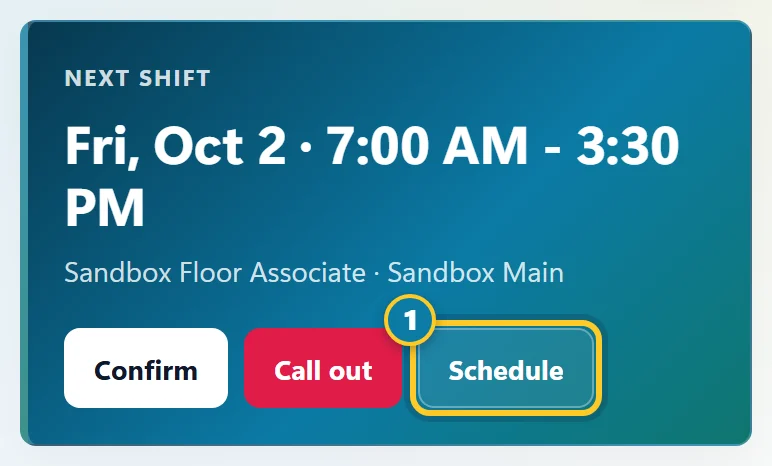
Your next shift, with a shortcut to your full schedule (1). - When your company asks you to, select Confirm to say you'll be there. If you can't make it, select Call out.
- Select Schedule (1) to open that shift in your full schedule.
Next shift is the next one that hasn't ended yet, in your company's time zone. A shift that's already over moves off Home.
If your company uses the time clock, the Punch clock card is next, with Clock In and Clock Out. See Clock in and out.
Things that need you
-
Look at Needs you. It lists things waiting for you, such as Confirm your schedule, Read and acknowledge updates, Respond to coverage request, Finish tasks, Complete survey or Update your credentials.
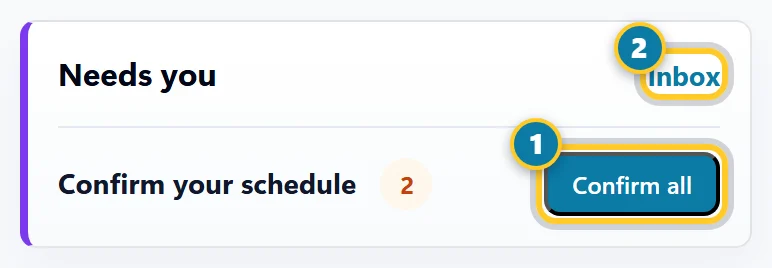
Confirm all your shifts at once (1), or open your inbox (2). - Select a row to deal with it. For shifts, Confirm all (1) confirms every shift waiting for you.
- Select Inbox (2) for messages and updates.
The number at the top of Home, like 2 to do, counts everything waiting. When nothing is, it says All caught up.
The mail icon at the top of every page opens your Inbox. Its number counts your unread messages and updates, plus tasks and surveys waiting for you. The Inbox lists the tasks and surveys first.
Company updates
-
Look at Updates on Home. It shows the newest update from your company, and every update that asks you to confirm you read it.
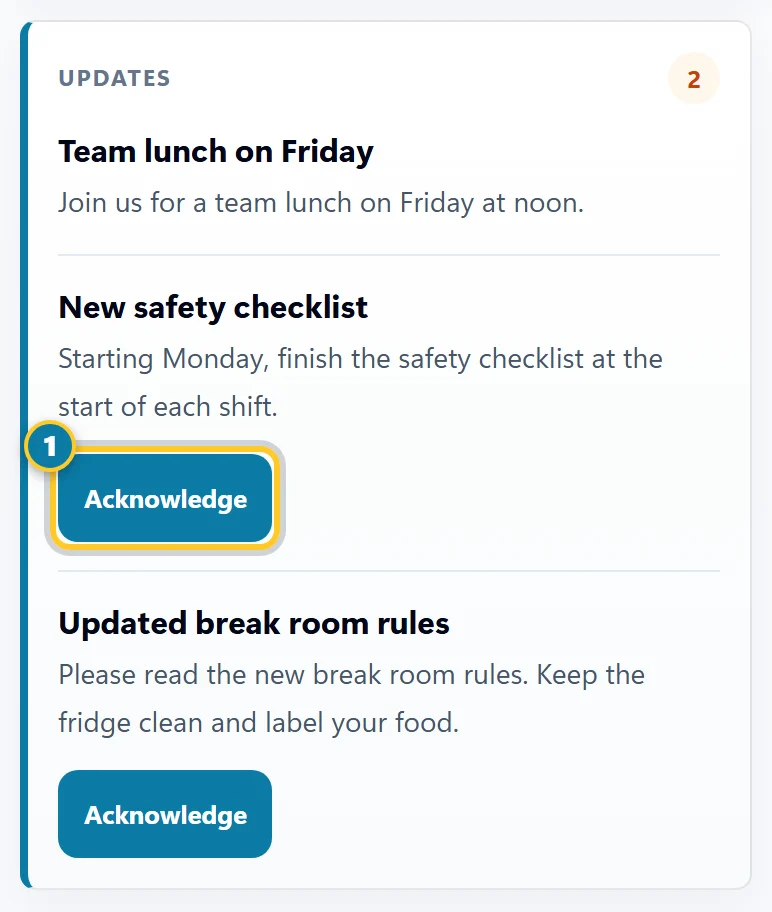
Select Acknowledge (1) under each update after you read it. - Read each one. If it has an Acknowledge button (1), select it. That tells your company you've seen it.
When there's just one update to show, the box is called Latest update. If an update has a file attached, select the file's name to open it.
More on Home
- Your onboarding checklist: while you're new, your tasks and forms, with how many are done. See Finish my onboarding tasks and sign forms.
- Your shift checklists: checklists to finish during the shift you're working, when your company uses them.
- Employee referrals: open jobs at your company you can share with friends. Select Copy referral link and send the link to a friend.