Turn it on with an authenticator app
- Select Me, then scroll to Two-step sign-in.
- Open an authenticator app on your phone, like Google Authenticator, Microsoft Authenticator or 1Password. Add an account and scan the code on the screen. If you can't scan it, type the Key instead.
- Enter your Current password and the 6-digit Code from the app.
-
Select Turn on authenticator app.
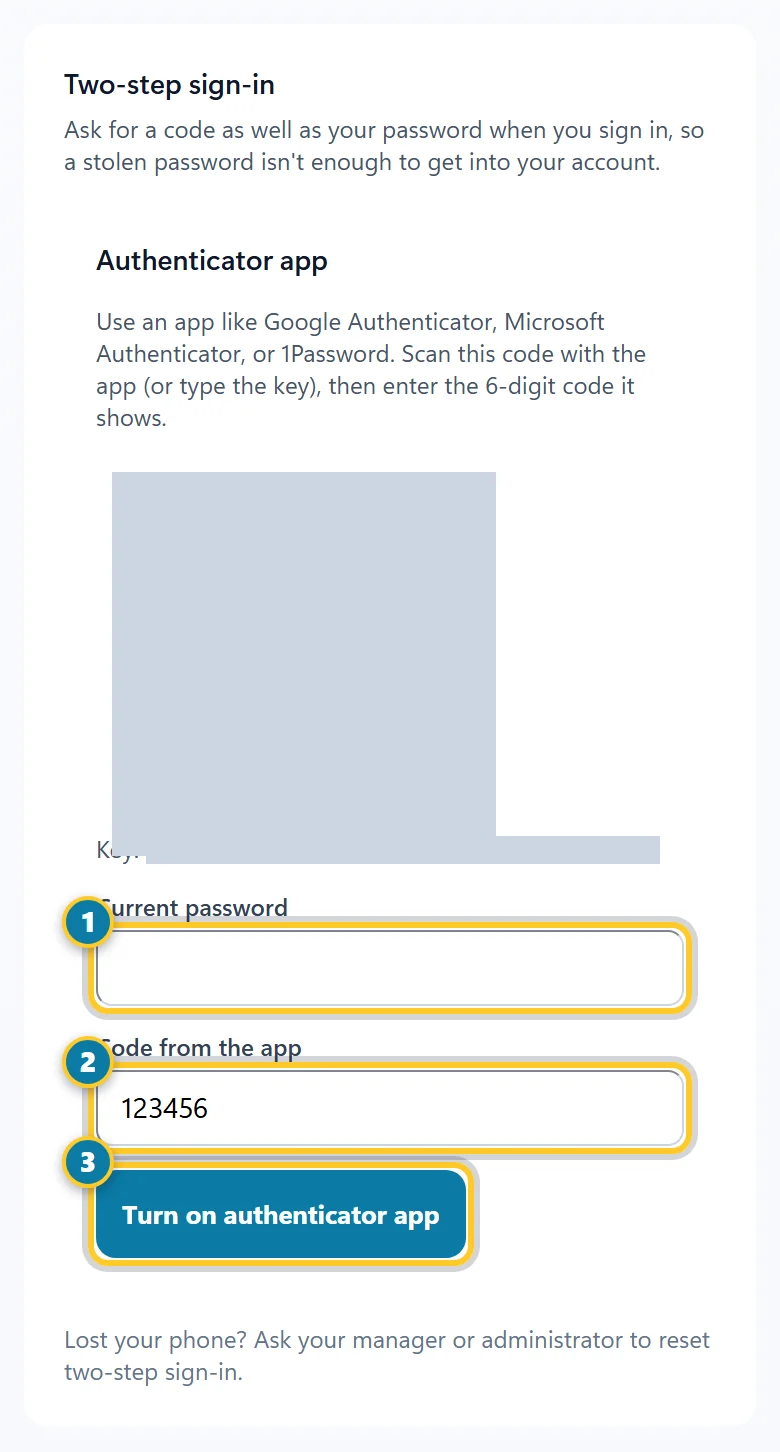
Enter your password (1) and the code from the app (2), then select Turn on authenticator app (3).
The section then says Authenticator app is on.
Or get codes by text
If your company offers it, you also see Text message codes. Enter your Mobile number, check the box to agree to the texts, and select Text me a code. Enter the code we text you, then select Turn on text codes.
Sign in with two-step
- Sign in with your email and password as usual.
- On Verify sign in, enter the 6-digit code from your authenticator app, or the one we texted you.
- Select Verify.
If you set up a passkey, select Use your passkey instead: no code needed. If you have text codes on, you can select Text me a code instead.
Some companies require two-step sign-in. Then the first time you sign in, you see Set up two-step sign-in and choose a way to get codes before you can continue.
Lost your phone or can't get a code? Ask your manager or administrator to reset two-step sign-in, then set it up again. AppyShift support can't turn it off for you.
Turn it off
Under Two-step sign-in, enter your current password next to the method and select Turn off. You may not be able to turn it off if your company requires it.