Set up a passkey on the website
Do this on your own phone or computer, in its web browser. Only set it up on a device you don't share.
- Sign in with your email and password.
- When AppyShift asks Sign in faster with a passkey, select Set up a passkey. (Or select Me, scroll to Passkeys and select Add a passkey. If it asks, enter your Current password first.)
-
Your phone or computer asks for Face ID, your fingerprint or your screen lock. Confirm it.
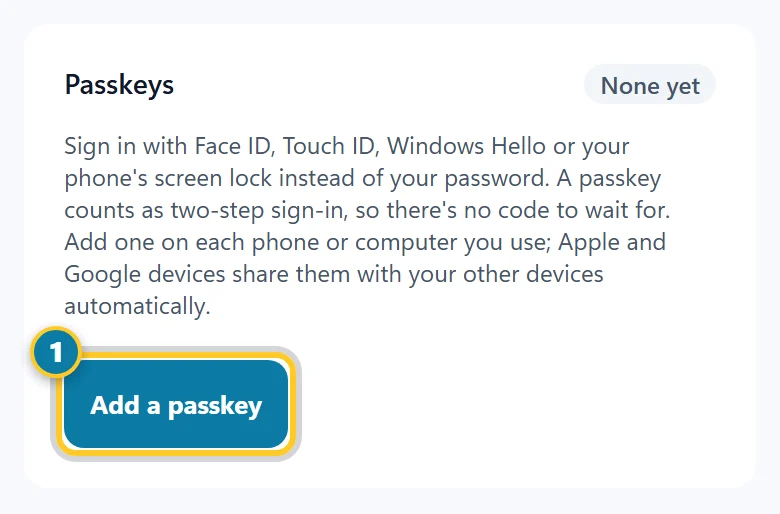
Select Add a passkey (1).
You see "Passkey added." It's listed under Passkeys with the date you added it.
Sign in with your passkey
-
On the sign-in page, select Sign in with a passkey.
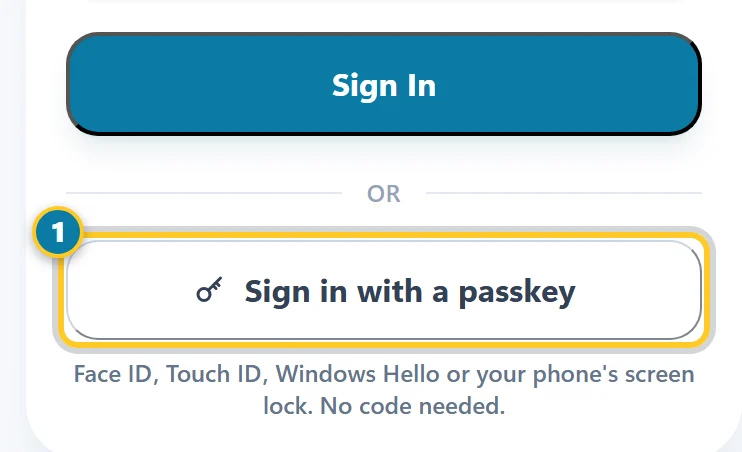
Select Sign in with a passkey (1). - Confirm with Face ID, your fingerprint or your screen lock. You're signed in. No password, and no two-step code.
Add a passkey on each phone or computer you use. Apple and Google devices share passkeys with your other devices signed in to the same account.
Face ID in the iPhone app
- Sign in to the AppyShift app with your email and password.
- When the app asks Set Up Face ID for faster sign-in?, select Set Up Face ID and confirm.
- Next time, select Use Face ID on the sign-in screen.
Selected Not Now? Select Me, then under Mobile App Settings, select Turn on quick sign-in. To stop, select Remove saved sign-in from this phone. If your iPhone uses Touch ID, the buttons say Touch ID instead.
The Android app is still on its way. Until it's ready, use AppyShift in your phone's web browser and set up a passkey there with your fingerprint or screen lock.
Remove a passkey
Select Me, scroll to Passkeys, and select Remove next to the passkey. You can still sign in with your password. If your manager resets your sign-in, your passkeys are removed and you add them again.